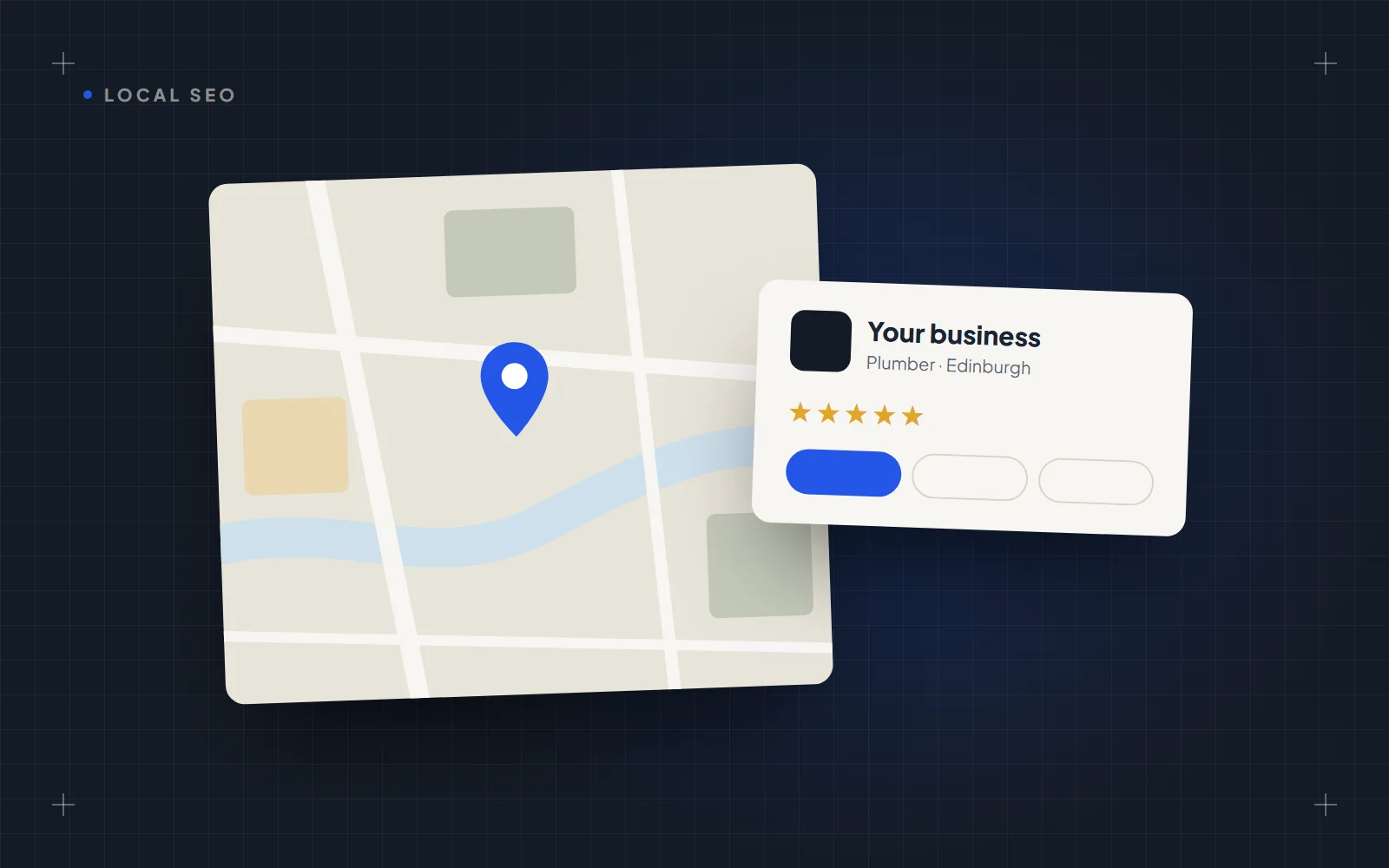
When someone searches "plumber near me" or "physio Leith", the first thing they usually see is a map with three businesses pinned on it. Those listings come from Google Business Profile, a free tool that controls how your business appears in Google Search and on Google Maps.
Setting one up takes about half an hour, plus a wait for verification. Doing it properly takes a little longer, and that extra effort decides whether you show up in that map or sit below it. This guide covers both.
Before you start
Have these ready:
- a Google account you'll keep long term (ideally one tied to your business email, not a staff member's personal account)
- your business name exactly as you trade, matching your signage, invoices and website
- a phone number customers can call
- the towns or postcodes you cover, if you travel to customers
- a handful of real photos of your work, your premises or your van
One rule shapes everything else: Google Business Profile is for businesses that meet customers in person, either at your premises or at theirs. A business that only ever works online isn't eligible.
Step 1: Sign in and add your business
Go to google.com/business and sign in. Search for your business name first. If a listing already exists (Google sometimes creates them from public information), claim that one rather than making a duplicate. If nothing comes up, choose to add your business.
Step 2: Enter your name and category
Type your business name as you actually trade. Then pick a primary category: the one that best describes your main service, such as "Plumber", "Physiotherapist" or "Website designer". Start typing and choose from Google's list. You can't invent your own categories.
The primary category carries a lot of weight in which searches you appear for, so choose the most specific option that fits. "Electrician" beats "Contractor" if electrical work is what most of your customers call you for.
Step 3: Storefront or service-area business
This is where many trades get it wrong.
If customers come to you (a shop, salon, clinic or office with staff during opening hours), add your address and it will show on the map.
If you go to customers (plumbers, cleaners, mobile mechanics, gardeners), you're a service-area business. Google will still ask for an address to verify you, but you can hide it from the public. Then list the areas you serve, by town, city or postcode area. Many sole traders use their home address here, and with the address hidden, customers never see it.
If you do both, for example a garage that also offers call-outs, you can show your address and add service areas too.
Step 4: Add your contact details
Add your phone number and your website. If you don't have a website yet, you can leave that field blank and come back to it, but it's one of the most useful links on the profile (more on that below).
Step 5: Verify your business
Google needs to confirm you're a real business at the location you've given. The options it offers depend on your business type and location, and you don't get to choose freely. The most common one now is a short video, recorded on your phone, showing things like your signage or van, your tools or equipment, and something that proves you manage the business, such as paperwork or a key to the premises. Some businesses are offered a phone call, a text, an email or a postcard with a code instead.
Verification can take anything from a few minutes to a couple of weeks. Your profile won't appear publicly until it's done, so start it early.
How to complete your profile properly
A verified profile with only a name and a phone number will be outranked by a competitor who filled in every field. Work through these.
Secondary categories
Add a few secondary categories for other services you genuinely offer. A heating engineer might use "Heating contractor" as primary and add "Boiler supplier" or "Plumber" if they really do that work. Only add what's true: irrelevant categories can show you for searches you'll lose anyway.
Services
List your services individually, with a short description where Google allows it. "Boiler repair", "Boiler installation" and "Power flushing" give Google far more to match against than one line saying "heating work".
Opening hours
Set your normal hours and add special hours for bank holidays and Christmas. A profile that says you're open when you aren't gets bad reviews fast.
Business description
You get up to 750 characters. Use the first two sentences to say what you do, where, and for whom, in plain language. Mention the areas you cover by name. Leave out links, prices and promotional claims like "best in Edinburgh".
Photos
Upload real photos: your work, before and afters, your team, your premises or van, your logo and a cover image. Stock photos don't help, and customers can tell. Add new ones every month or so, since an active profile looks like an active business.
Reviews
Reviews influence both your ranking and whether people click. The simplest way to get them is to ask every happy customer, at the moment they're happy, and make it easy: Google gives you a short review link you can text or email straight after a job.
Reply to every review, good or bad. A short, specific thank-you to a good review and a calm, factual reply to a bad one both tell future customers you're paying attention. Never pay for reviews, offer discounts in exchange for them, or write them for yourself. It breaks Google's rules, and in the UK fake reviews are also against consumer protection law.
Posts
You can publish short updates to your profile: a recent job, a seasonal offer, a new service. They're quick to do and show searchers the business is active.
Common mistakes that cost you rankings
- Keywords in your business name. Calling yourself "Smith Plumbing Edinburgh Emergency Boiler Repair" when you trade as "Smith Plumbing" breaks Google's guidelines and can get your profile suspended.
- Using a virtual office or registered office address. Addresses from virtual office services aren't allowed. If you don't have staffed premises customers can visit, set up as a service-area business and hide your address.
- Inconsistent details across the web. If your name, phone number or address differ between your profile, your website, Facebook and directories, Google is less sure they're the same business. Pick one version and use it everywhere.
- Duplicate listings. Two profiles for the same business split your reviews and confuse Google. Claim and merge, or remove the extra one.
- Setting it up and forgetting it. Old hours, no new photos and unanswered reviews all make a profile less useful to customers and to Google.
Why your profile needs a website behind it
Your profile gets you seen. Your website is where people decide. Someone who taps through from Maps wants to see your prices, the areas you cover, the jobs you do and proof of your work, and a profile has limited room for that. A website that matches your profile (same name, same number, same services and areas) also gives Google more confidence about who you are and where you work.
We cover this in more detail in Do I still need a website if I have Facebook and Google reviews?
Want it done for you?
We're a web design studio in Edinburgh, and setting up or tidying a Google Business Profile is part of how we launch every client's website, so the profile, the site and your details all match from day one. If you'd like us to handle it, get in touch.